
Mac · Free
Just as easy on the Mac.
The Nuruu keyboard, now on the Mac. Type the way you think, and every word comes out right, in every app.
Nuruu
Version 1.0.0 · 8.4 MB
macOS 14 or later · Apple silicon and Intel
Publisher: L’Atelier Gege LLC
DownloadSHA-256 43014a5fc8c03f82c83bb87bef90bf8d27f216209df1d35ccfcadb57ee7d9f6c
We provide this keyboard as is, free of charge. We are not responsible for any problems it causes. Terms of Use
What it does
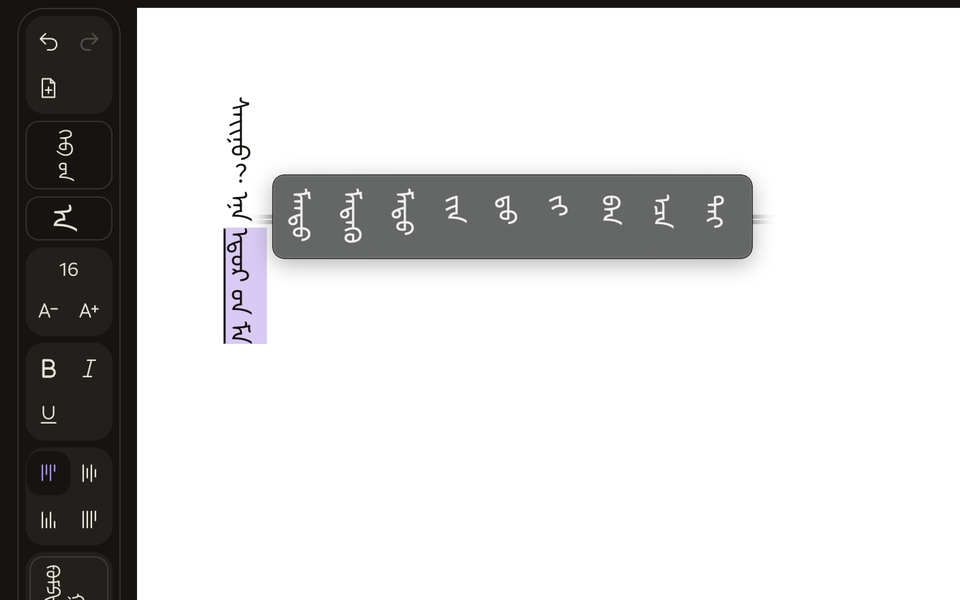
Words and suffixes, ready
As you type, the words and suffixes that fit come up beside the cursor, upright. Pick one and keep going; Nuruu joins each suffix the right way.
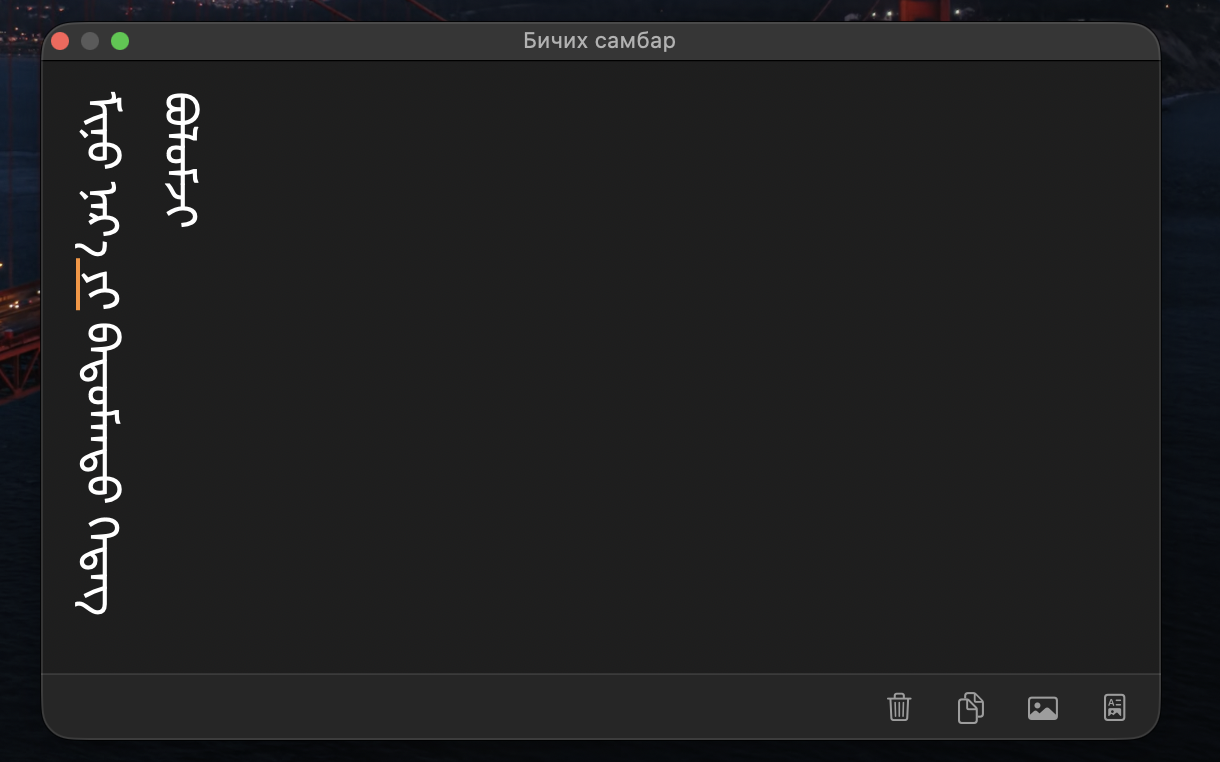
The Writing Pad
Press ⌥Space in any app and the pad opens, with your Mongol bichig standing upright. Write, then copy it wherever you like. It keeps what you wrote until you delete it.
Upright pictures
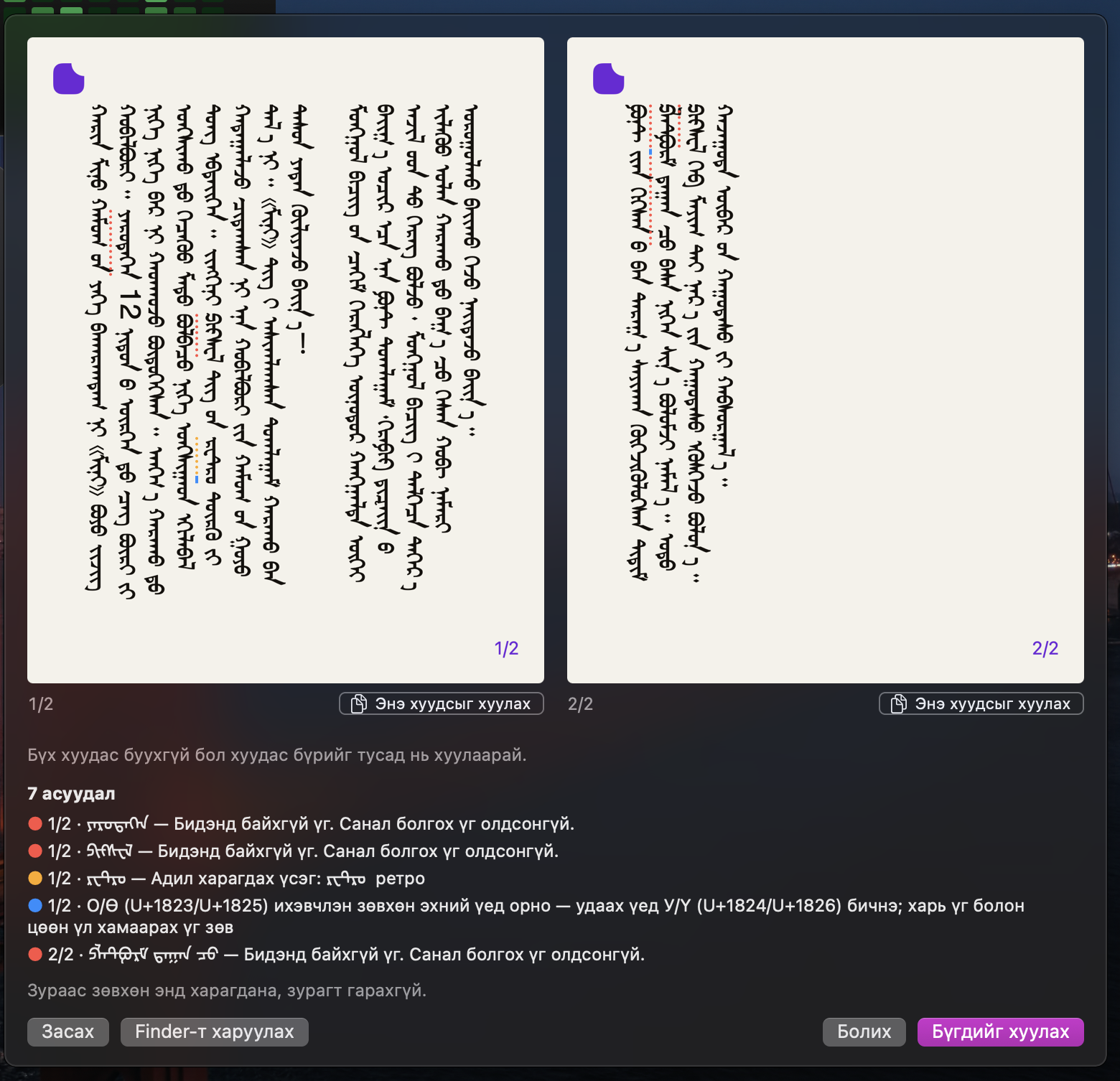
Press ⌃⇧P and your text is copied as an upright picture, so it looks right even in apps that draw Mongol bichig wrong. A long text becomes pages, and you see them, spelling checked, before they’re copied.
A PDF in one click
The pad turns everything on it into an A4 PDF, ready to attach to an email.
Updates itself
New versions install themselves. There’s no need to come back here for them.
What you type stays on your Mac.
Nuruu sends nothing you type anywhere. Usually once a day, it checks for new words, fonts and a new version, and that is all.
Set it up
Download
Click Download above to get the installer.
Install
Double-click the download and follow the installer. Nuruu installs for you alone, so it doesn’t ask for your Mac’s password.
Log out and back in
Choose Log Out from the Apple menu, then log back in.
Add the keyboard
In System Settings → Keyboard, under Text Input, click Edit…. If Нуруу isn’t listed, click + below the list, choose Mongolian, then Нуруу, and click Add.
macOS may warn that a keyboard can read what you type. What Nuruu sends is set out here.
Type
Pick Нуруу from the input menu in the menu bar and start typing. The Writing Pad and Settings are in that menu too.
Uninstall
- In System Settings → Keyboard → Text Input → Edit…, select Нуруу and click −.
- Log out from the Apple menu and log back in.
- In Finder, choose Go → Go to Folder…, type
~/Library/Input Methods, and moveNuruu.appto the Trash. - To remove its settings, what it learned and the pad’s text too, open
~/Library/Containerswith Go to Folder… and move the foldersmn.gege.inputmethod.nuruuandmn.gege.inputmethod.nuruu.fetchto the Trash, then do the same withmn.gege.inputmethod.nuruu.installin~/Library/Application Support. - In Terminal, run
pkgutil --volume ~ --forget mn.gege.inputmethod.nuruu.pkgto clear the installer’s record.
The pictures and PDFs kept in Pictures › Нуруу are yours and stay; delete them yourself if you don’t need them.
Questions? Email support+nuruu@gege.mn, or choose Contact Support… in Nuruu’s input menu.
Nuruu Basic
For a plain keyboard layout, with no list or corrections: Nuruu Basic («Нуруу Энгийн») puts its letters where the Windows Mongolian layout does.
Nuruu Basic
Version 1.1 · 9 KB
macOS
SHA-256 dce7cdf44d9822d408f83538e0fe350c9507764e0b22dd6a9069fc965676b278
We provide this keyboard as is, free of charge. We are not responsible for any problems it causes. Terms of Use
The keys
Set it up
- Double-click the download to unzip it; Safari does this for you. You get
Nuruu Basic.bundle. - In Finder, choose Go → Go to Folder (⇧⌘G), type
~/Library/Keyboard Layoutsand press Return. DragNuruu Basic.bundleinto the folder that opens. - In System Settings → Keyboard, under Text Input, click Edit, then + below the list. Choose Mongolian and add «Нуруу Энгийн». Not in the list? Quit System Settings and open it again. Still missing? Log out from the Apple menu and log back in.
- Pick «Нуруу Энгийн» from the input menu in the menu bar and start typing. Hold Option for the U.S. digits and punctuation. Shortcuts with Command or Control work as usual.
- When a new version comes out, download it here and copy it over the old one.